Buying a License
The Buy page of the portal lists every way to license Icon Map. Usage plans are bought here, by card or on invoice. Per-user plans for Power BI are bought on Microsoft AppSource, and enterprise and capacity plans are arranged with our sales team.
Open it from Buy in the portal menu, or go to /portal/buy. You can look at prices without signing in. You sign in when you select Buy.
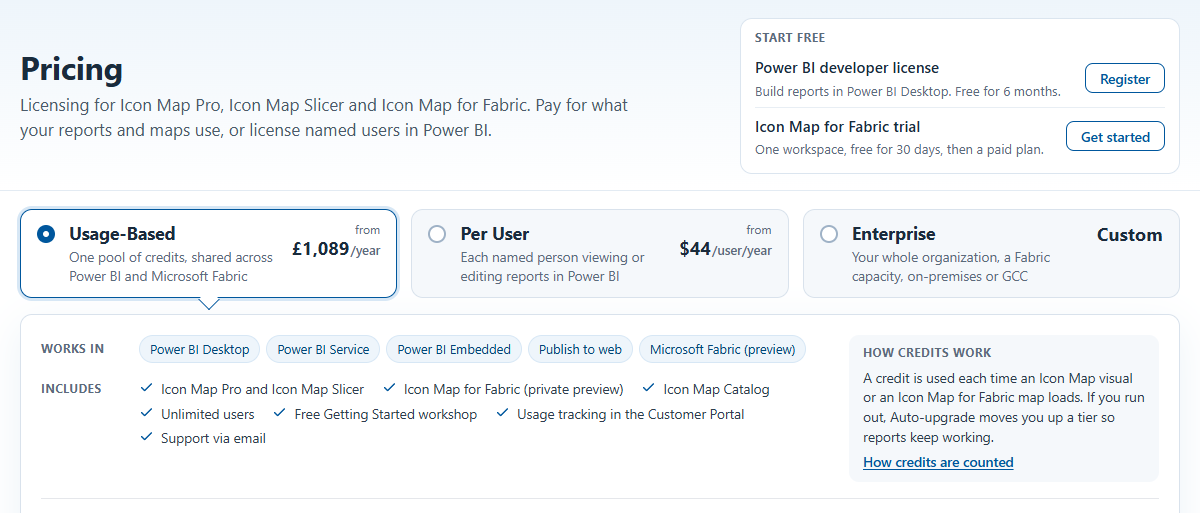
| Plan | For | How to get it |
|---|---|---|
| Power BI Developer | Building Icon Map Pro and Icon Map Slicer reports in Power BI Desktop and in the Power BI service in edit mode, free for 6 months | Register in the Start free box. See Subscriptions and usage |
| Icon Map for Fabric Trial | Trying Icon Map for Fabric in one workspace for 30 days | Get started in the Start free box, then start the trial from inside Microsoft Fabric. See Free trial |
| Usage-Based | One pool of credits shared by Icon Map Pro, Icon Map Slicer and Icon Map for Fabric, for any number of users | Bought here, by card or on invoice |
| Per User | Named Power BI users of Icon Map Pro or Icon Map Slicer | Bought on Microsoft AppSource |
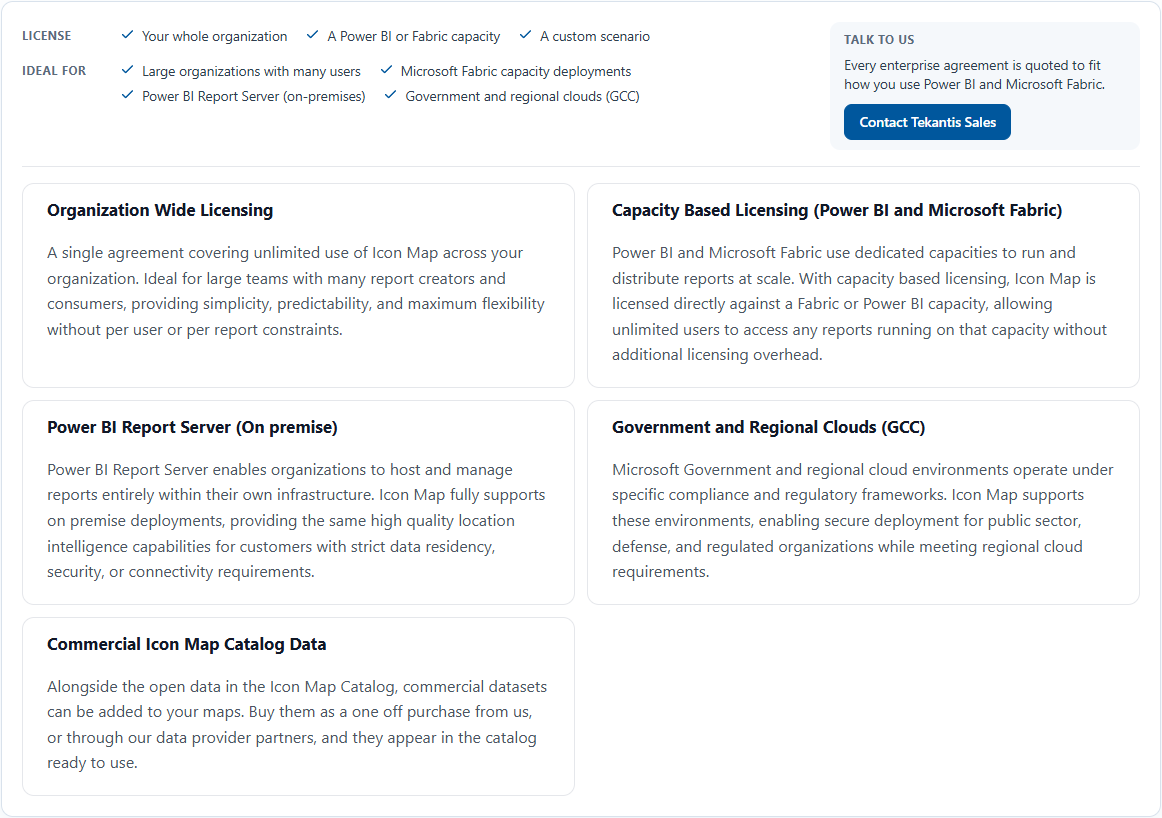
| Enterprise | Your whole organization, a Fabric or Power BI capacity, Power BI Report Server, or government and regional clouds | Contact Tekantis Sales |
Select Usage-Based, Per User or Enterprise to see that plan underneath: where it works, what it includes and its prices. Each plan shows its starting price. Further down, Compare plans sets all five side by side and Purchase terms lists the terms of the selected plan; select a heading to open it.
To link to a plan, add ?pricing=usage, ?pricing=per-user or ?pricing=enterprise to the page address.
Usage-based plans
- Select Usage-Based.
- Choose Annual or Monthly billing, and check the Country you are billed in.
- On the tier you want, set Quantity, and optionally select Include Extended Onboarding.
- Select Buy and sign in if you are asked to.
- Complete Account, Billing details, Review and payment and Finish.
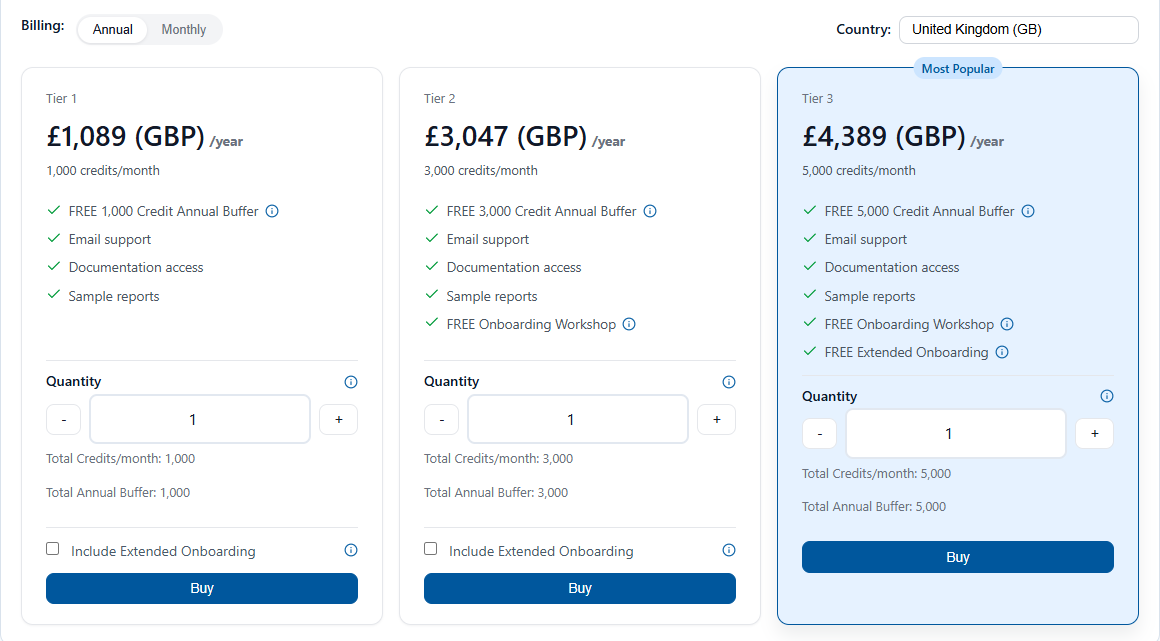
| Tier | Credits a month | Annual extras |
|---|---|---|
| Tier 1 | 1,000 | A free annual buffer of 1,000 credits |
| Tier 2 | 3,000 | A free annual buffer of 3,000 credits, and an onboarding workshop |
| Tier 3 | 5,000 | A free annual buffer of 5,000 credits, an onboarding workshop and Extended Onboarding |
Annual billing is recommended. On Monthly billing the annual-only extras are shown crossed out. For Extended Onboarding and your credit mode, see Buying Icon Map for Fabric. The same plan covers Icon Map Pro and Icon Map Slicer.
Pay by card
At Review and payment, accept the license and purchase terms and select Pay by Card. Paddle, our payment provider, takes the payment. After it succeeds, select Finish to see your license and subscription details. The license is active straight away.
Pay by invoice
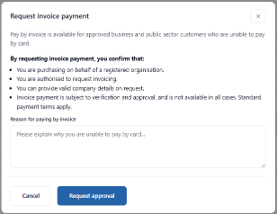
If you cannot pay by card, you can ask to pay by invoice. Pay by invoice is available for approved business and public sector customers.
The first time, Pay by Invoice opens Request invoice payment:
- confirm the eligibility statements,
- give a Reason for paying by invoice, and
- select Request approval.
Once we approve your account, Pay by Invoice opens Confirm invoice purchase. You can add a Purchase order number (optional), then select Confirm. The license is enabled straight away, and you receive an invoice from Paddle.
Request a quote
Select Request quote to create a formal quote for internal approval. You can pay it later from Quotes. See Quotes and billing.
Account owners and license managers can buy. Members see "You do not have permission to purchase on this account. Please speak to the account owner." See Account roles.
Per-user plans
Per-user plans for Icon Map Pro and Icon Map Slicer are bought on Microsoft AppSource and assigned in the Microsoft 365 admin center. Select Per User, choose the Product and the Catalog tier, then select Buy from AppSource on the tier for your number of users. If you cannot buy through AppSource, for example because you use a reseller, contact sales@tekantis.com.
Per-user plans cover the Power BI visuals only, not Icon Map for Fabric.
Enterprise and capacity plans
Select Enterprise to see organisation-wide licensing, capacity-based licensing for Power BI and Microsoft Fabric, Power BI Report Server, government and regional clouds, and commercial catalog data. These are arranged with our sales team: select Contact Tekantis Sales.