
Settings
Open Settings to manage your profile, billing details, and account access.
Profile
Update your personal information:
- First name / last name
- Job title
Company & Billing Details
Manage the billing profile used for checkout and quotes, including:
- Billing contact details (including billing email)
- Company name and address
- Tax ID (VAT/EIN/TIN, etc.)
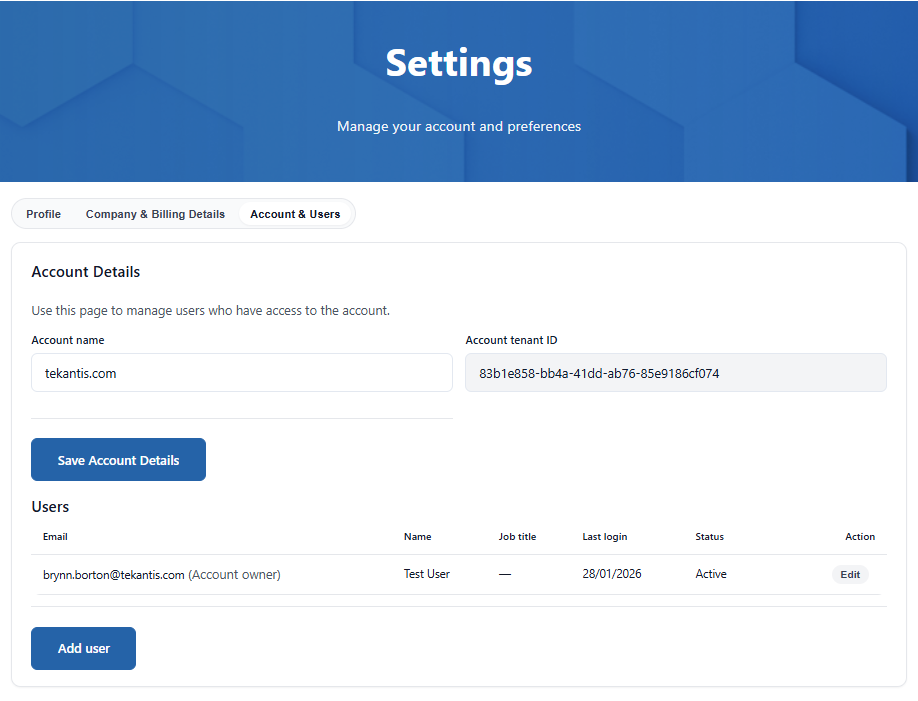
Account & Users
The portal has been designed to be as flexible as possible to meet the needs of all types of our customers, from small teams to large enterprises. We therefore allow as many accounts as you wish within a single organisation.
When you first log in, an account will be created for you unless you have been specifically invited to another account, or you choose to request to join a discoverable account in your organisation.
Discoverable Accounts
The Discoverable setting controls whether new users in your organisation are shown this account when they sign in for the first time. When a new user signs in, the portal checks for discoverable accounts in the same Microsoft tenant and offers the option to request to join one.
The following logic is applied:
- Not set (default) — The account will automatically be discoverable if it has at least one active paid subscription (i.e. not a developer or trial licence). This is the default behaviour for all accounts.
- Yes — The account will always be shown to new users, even if it only has a developer or trial licence. Use this if you want team members to find and join your account before purchasing a paid subscription.
- No — The account will never be shown to new users. Use this if you prefer to manage access entirely through direct invitations.
Once a user requests to join, all account owners will receive an email with a link to approve or decline the request. If approved, the user will receive a confirmation email and the account will be available the next time they sign in.
:::note Tip If your organisation has multiple accounts, give each one a meaningful name (e.g. the department or team name) so that new users can easily identify which account to join. :::
Managing Team Members
The owner of the account can add or disable access to members of their team using this page.
To add a new user:
- Click Add User
- Enter their email address
- Select their role/permissions
- Click Send Invite
The invited user will receive an email with instructions to access the account.
:::note Tenant Restrictions Remember that invites are tenant-scoped. The invited user must be in the same Microsoft tenant as the account, unless the account was created against a personal account (e.g., gmail.com). :::
User Roles
Each user on an account is assigned one of two roles:
| Account Owner | User | |
|---|---|---|
| View subscriptions and usage | ✓ | ✓ |
| Copy licence keys | ✓ | ✓ |
| Download theme files | ✓ | ✓ |
| View and interact with usage charts | ✓ | ✓ |
| View subscription details | ✓ | ✗ |
| Purchase subscriptions | ✓ | ✗ |
| Manage quotes and billing | ✓ | ✗ |
| Manage account settings and users | ✓ | ✗ |
| Approve join requests | ✓ | ✗ |
- Account Owner — Full access to all portal features, including purchasing, billing, settings, and user management. An account can have multiple owners.
- User — Read-only access to subscriptions, licence keys, theme files, and usage data. Users cannot access subscription details, quotes, billing, or settings, and cannot make purchases.
The role is selected when inviting a new user and can be changed at any time by an account owner from the users table.